Managing Jekyll Blogs with OpenClaw and Tailscale
Learn how to use OpenClaw to manage your Jekyll blog repository, generate images with Gemini Nano Banana, and preview posts remotely via Tailscale.
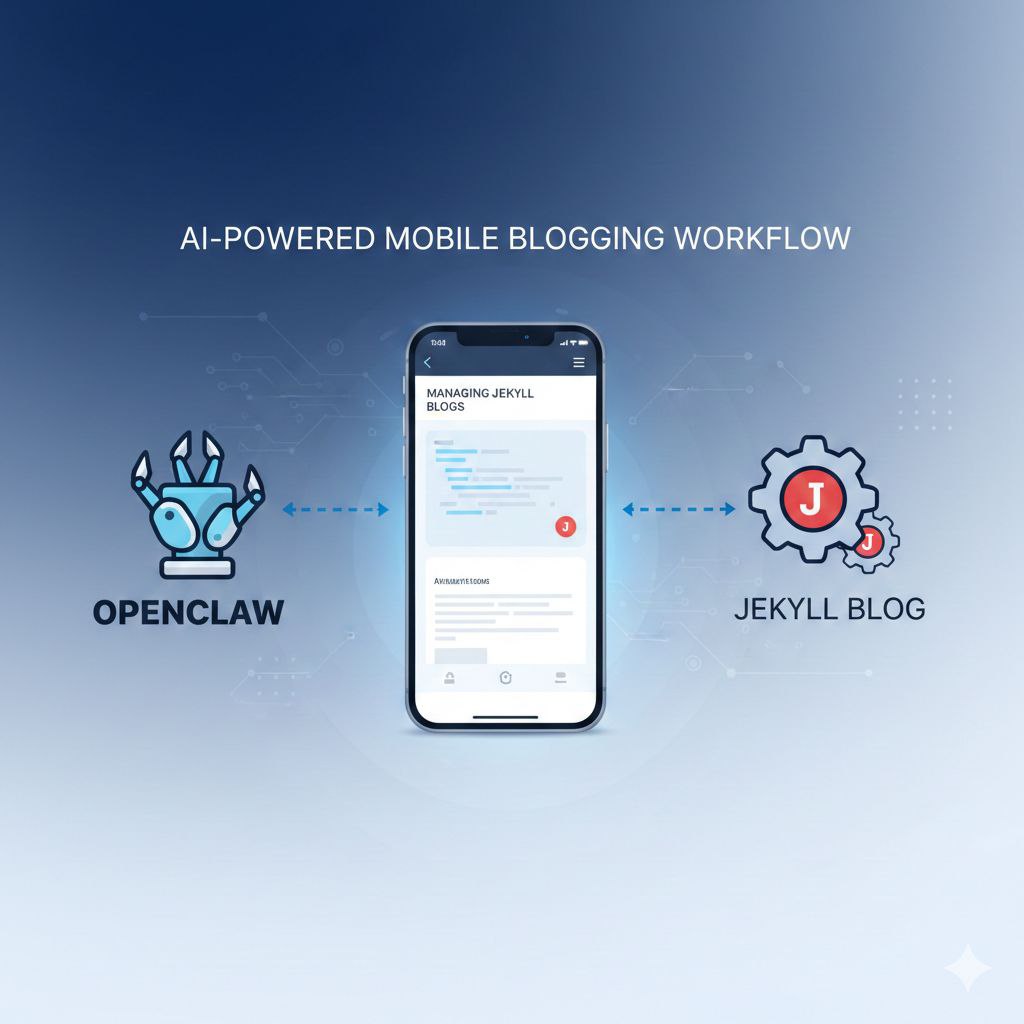
Creating a tech blog shouldn’t be a chore. In this post, I’ll show you how I’ve streamlined my workflow using OpenClaw and Tailscale to manage my Jekyll tech blog from my phone.
The Workflow
The core idea is simple: use OpenClaw as the central orchestrator for the entire blog lifecycle. The workflow consists of three main steps:
Step 1: Content Creation & Image Generation
When I have an idea for a blog post, I send a message through Telegram to my OpenClaw agent. This triggers a sophisticated automation chain:
- OpenClaw receives the request and begins orchestrating the workflow
- Git Repository Management: OpenClaw ensures the local Jekyll repository is up-to-date by pulling the latest changes
- Claude Skill Activation: OpenClaw invokes a custom Claude skill designed specifically for Jekyll blog post creation
- Draft Generation: The Claude skill generates a comprehensive draft post with:
- Proper Jekyll front matter (title, date, categories, tags)
- Structured markdown content based on my idea
- Placeholder for hero image
- Image Generation: In parallel, OpenClaw sends a prompt to Gemini Nano Banana to generate an appropriate hero image for the post
- Image Integration: The generated image is downloaded and referenced in the post’s front matter
- Local Preview: OpenClaw starts the Jekyll local server so the post can be previewed
Step 2: Remote Preview via Tailscale
Rather than being tied to my desktop, I can preview the post from anywhere using my phone:
- Tailscale VPN creates a secure tunnel to my home network where the Jekyll server is running
- I access the local Jekyll server URL (e.g.,
http://homeserver:4000) through my phone browser - The draft post renders exactly as it would appear on the live blog
- I can scroll, read, and evaluate the content and image quality on a real mobile device
Step 3: Iteration & Deployment
After reviewing the preview, I can:
- Send edit requests back through Telegram to OpenClaw
- OpenClaw applies the changes and regenerates the preview
- Once satisfied, I accept the changes via Telegram
- OpenClaw handles the Git check-in and deployment:
- Commits the new post and image files
- Pushes to the remote repository
- Triggers the GitHub Pages build
graph TD
    user["👤 User"]
    telegram[Telegram]
    openclaw[OpenClaw Agent]
    gitRepo[Git Repo Management]
    claudeSkill[Claude Skill]
    draftPost[Draft post]
    jekyll[Jekyll Local Server]
    gemini[Gemini Nano Banana Image Generation]
    tailscale[Tailscale VPN]
    phoneBrowser[Phone Browser Preview]

    user -->|Step 1: Idea & Request| telegram
    telegram --> openclaw
    openclaw --> gitRepo
    openclaw --> claudeSkill
    claudeSkill --> draftPost
    draftPost --> jekyll
    openclaw --> gemini
    gemini --> draftPost
    gitRepo --> deploy[Check-in & Deploy]

    tailscale --> jekyll
    phoneBrowser --> tailscale

    user -->|Step 2: Preview Post| phoneBrowser
    user -->|Step 3: Edit & Accept Changes| telegram
Why This Workflow Works
This setup delivers several key advantages:
- Mobile-First: I can manage my entire blog from my phone, whether commuting, traveling, or away from my desk
- Automated Image Generation: No need to search for stock photos or create graphics manually
- Real Device Preview: See exactly how posts will look on mobile before publishing
- Secure Remote Access: Tailscale provides zero-trust network access without exposing services to the internet
- Git-Native: All changes are properly versioned and deployed through standard Git workflows
- AI-Assisted Writing: Claude handles the heavy lifting of post structure and content generation
References
Here are the tools and services that make this workflow possible:
- OpenClaw - AI agent orchestration platform for Telegram-based automation
- Tailscale - Zero-config VPN built on WireGuard for secure remote access
- Gemini Nano Banana - AI-powered image generation service
- Jekyll - Static site generator for blogs and documentation